
Draft, Scheduled, Live
| Status | Meaning |
|---|---|
| Draft | In your Studio only. Everything you bring in starts here. |
| Scheduled | Set to go live on a date you chose, within five minutes of that time. |
| Live | On Discover and your public page. Cooks can save it, plan it and cook it. |
Publishing an item
- Open the recipe, collection or meal plan.
- Press Publish at the top right.
- Check the title and description. They come from the item; change them only if you want different words on Discover.
- Leave Now selected and press Publish.
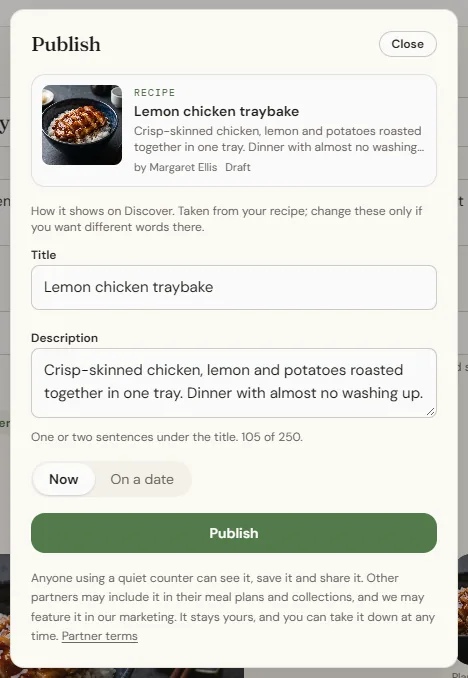
You can publish a recipe without a photo and add one later.
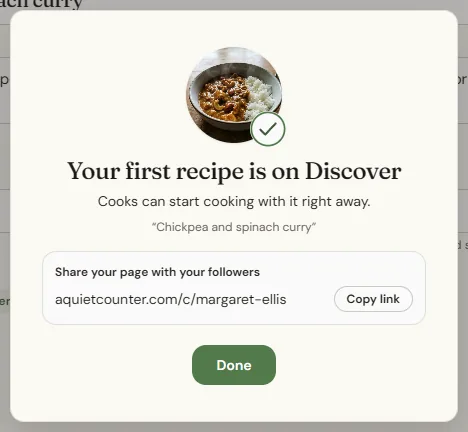
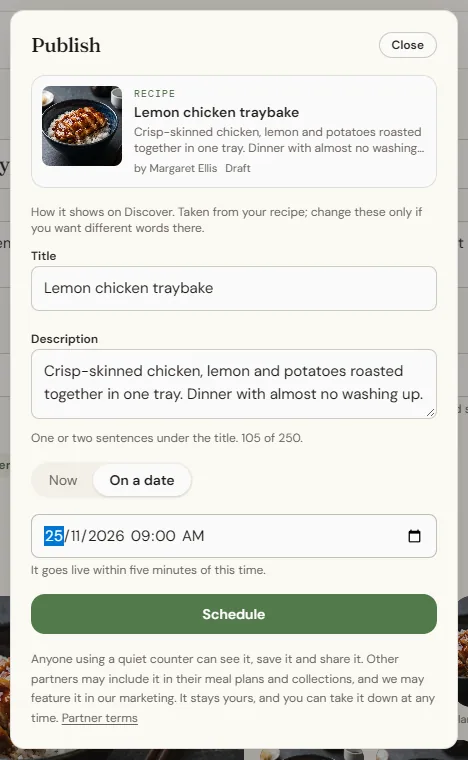
Publishing on a date
In the same pop-up, choose On a date, pick the day and time, and press Schedule. It goes live within five minutes of that time. You can change the date until then.
Example: your stats show most saves happen on Thursday evenings, so you schedule new recipes for Thursday at 5 pm. See your stats.
Collections
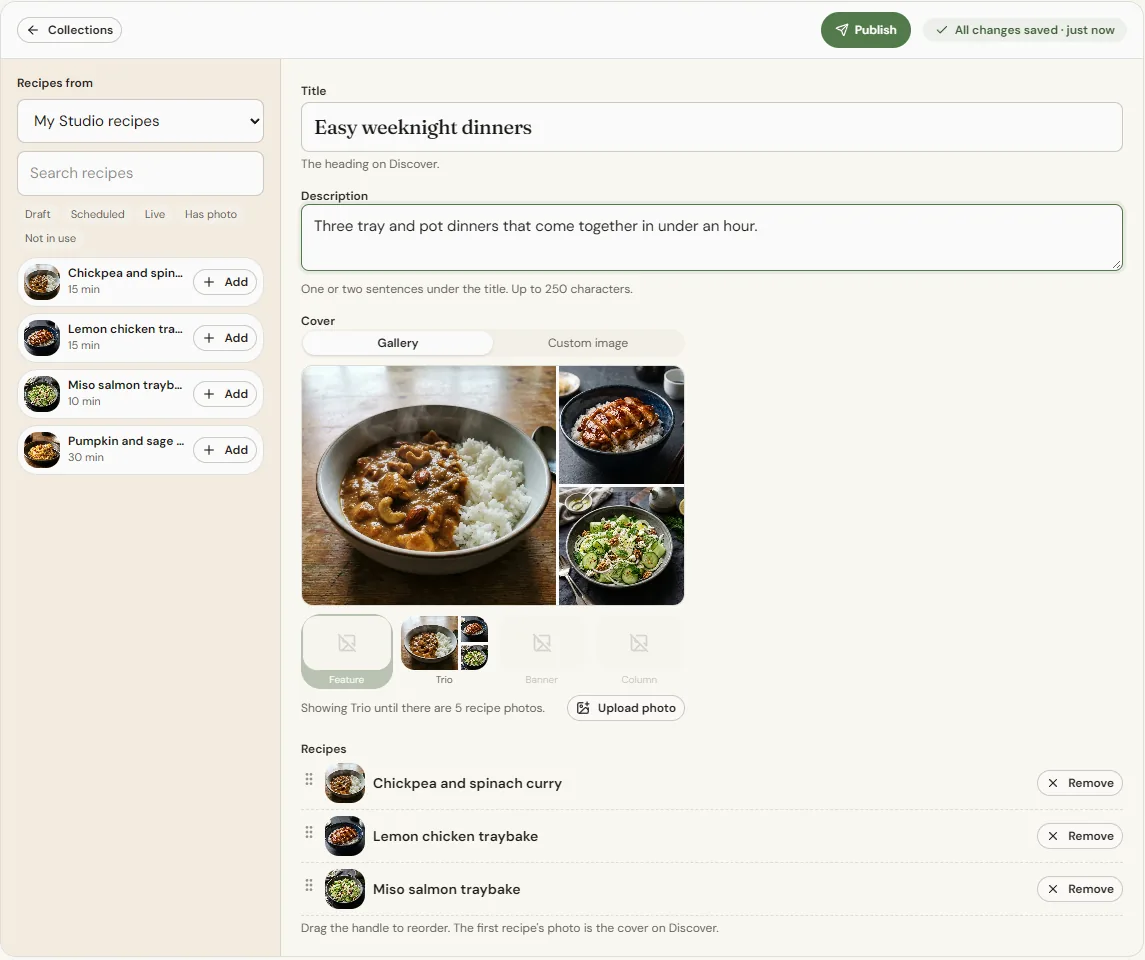
A collection is a set of your recipes around one idea, such as "Easy weeknight dinners" or "8 cosy Christmas lunch sides".
- Open Collections and press New collection.
- Give it a title and a short description.
- Add recipes from the list on the left. Filter by Draft, Scheduled, Live or Has photo, or search.
- Drag to reorder. The first recipe's photo becomes the cover on Discover, or choose a layout or upload your own cover.
- Press Publish.
Meal plans
A meal plan lays your recipes out by day and meal, for 7 to 28 days. A cook can add the whole plan to their week, and the grocery list builds itself.
- Open Meal plans and press New meal plan.
- Give it a title and description, and choose the length.
- Drag a recipe onto a meal, or press Add next to it and click a meal.
- To plan leftovers, drag the corner handle of a meal to a later meal.
- Press Publish.
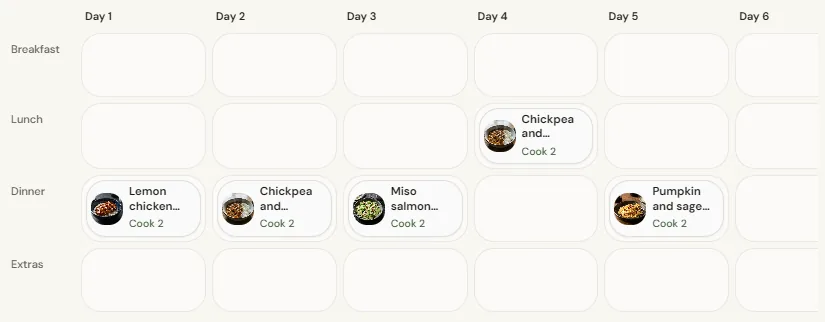
Daily goals for calories and protein help you plan, and are not published.
After it is live
- Editing: change the item as usual. If the title or description changed, the Publish pop-up shows Update; press it. When it says "Discover shows the latest version", you are done.
- Cooks' saved copies: cooks who already saved it keep the copy they saved. New cooks get the latest version.
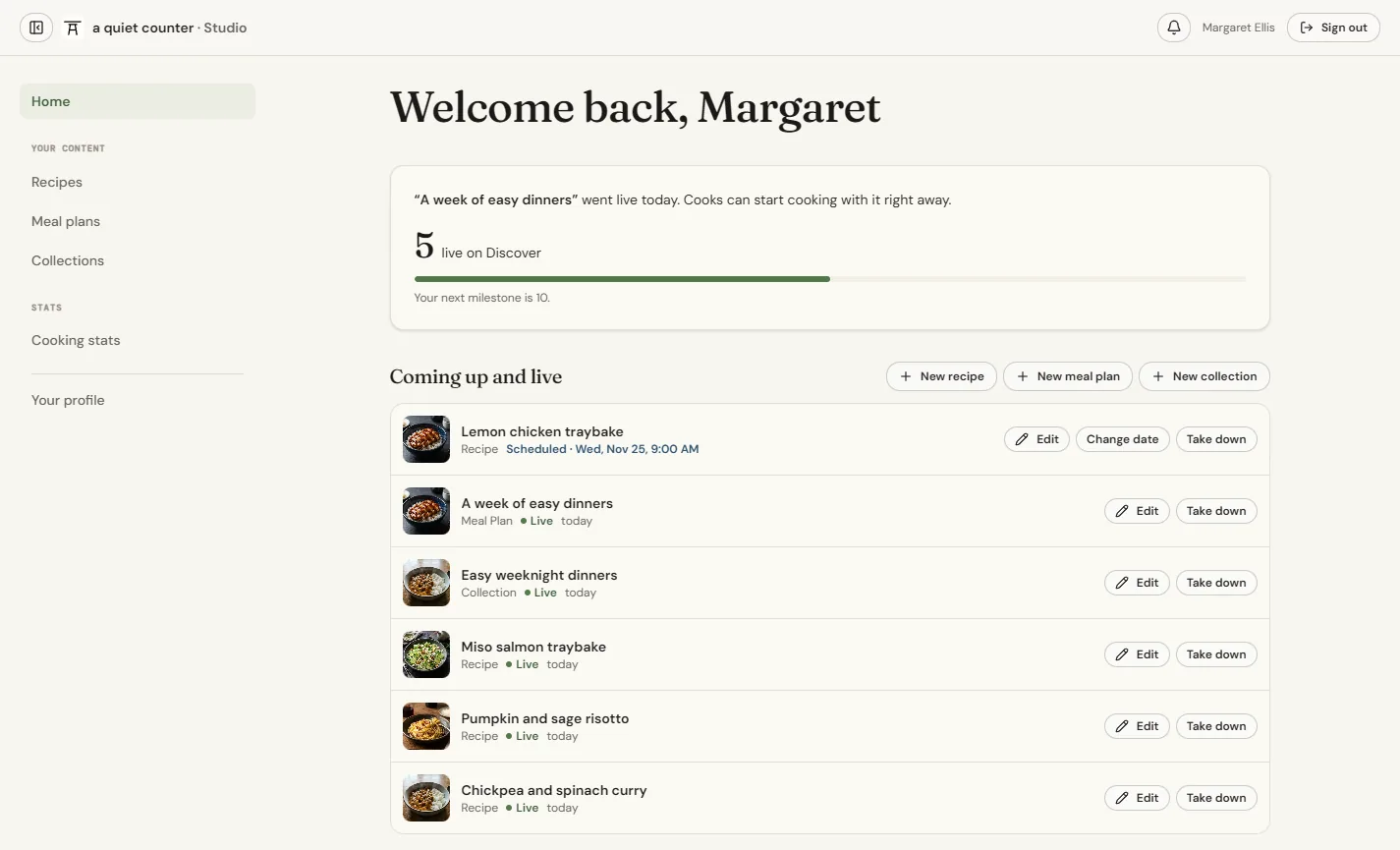
- Taking it down: press Take down on your Home page or in the Publish pop-up. It leaves Discover and your public page. The recipe itself stays in your Studio.
Your Home page
Home lists everything coming up and live, with Edit, Change date and Take down, and how many saves each has.
What cooks see
Cooks find your post on Discover with your name and photo. Recipes are complete, so cooks never need to go elsewhere for the method. They can:
- save a recipe to their library,
- plan it into their week, or add a whole meal plan at once,
- get a grocery list scaled to their household,
- cook it step by step.
Your name and links stay on every recipe, including the copies cooks save.